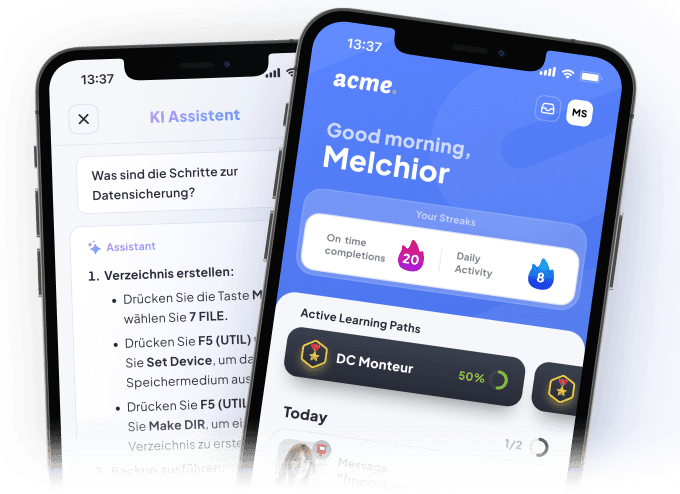
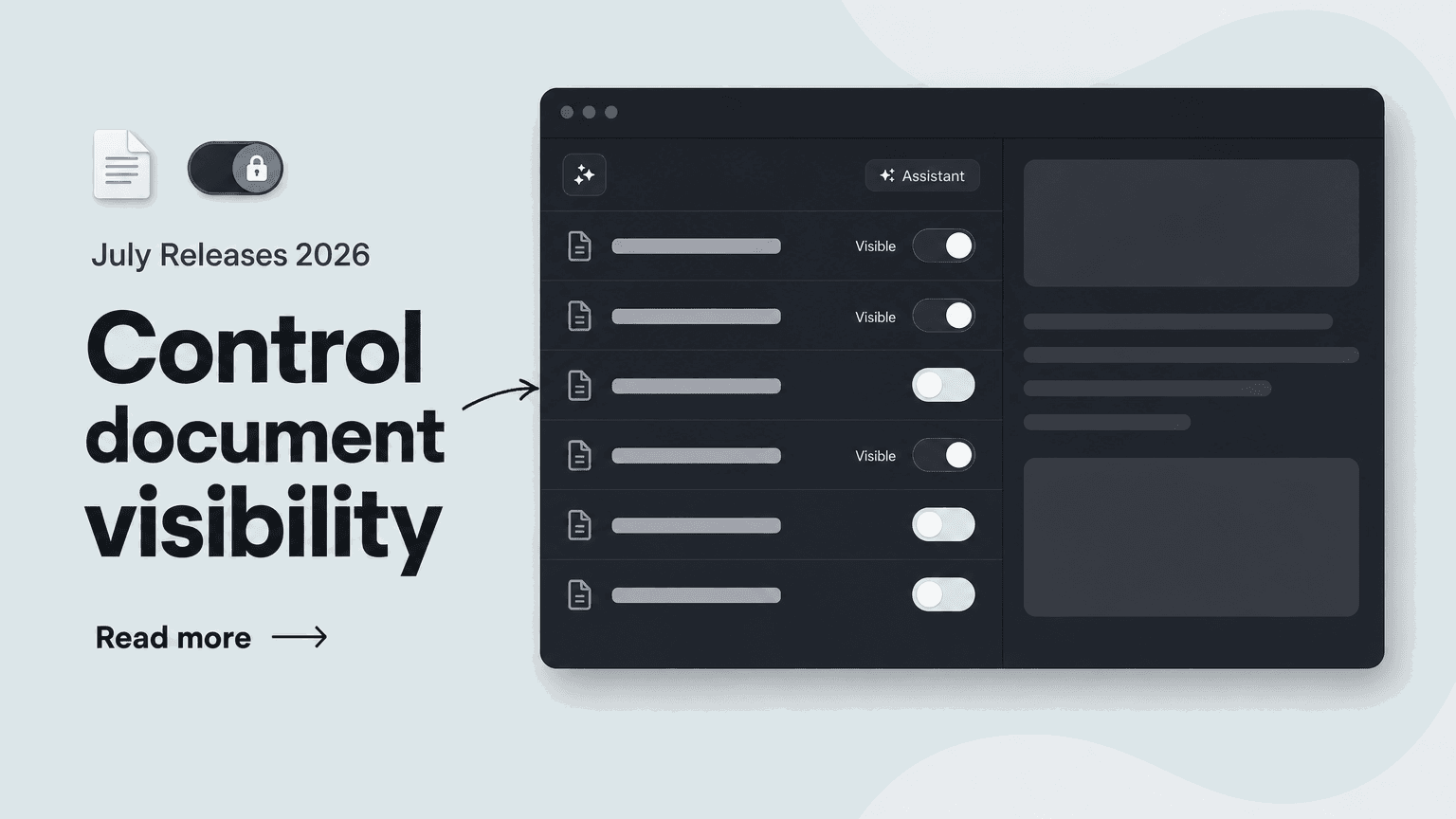
Not every document in a knowledge space is meant for everyone's eyes: some files are internal source documents the AI assistant should still learn from. That is now controllable per document.
👁️ Per-document visibility: You decide what learners see.
Every document in a Knowledge Space now has two toggles that can be set independently:
- "File visible for learners": Hidden files can neither be found nor downloaded in the App
- "File available for the AI assistant": The AI assistant can still use a file's knowledge to answer questions – even when it is hidden from learners
- Folder level: Both toggles also work on entire folders, applying to all files inside
This lets you curate exactly what your learners see and download in the App, while the AI assistant can still answer from internal source documents you'd rather keep behind the scenes.
🔎 Status at a glance: Clear icons in the Hub.
The Hub shows the settings directly on the document cards:
- A crossed-out eye icon means the file is hidden from learners
- A green dot shows the AI assistant can access the file
- Little extra: Via the three-dot menu → "Edit", documents can now also be renamed
This keeps you oriented even in large knowledge spaces – ideal for curated learning libraries, internal raw sources, and any scenario where the AI assistant should know more than the App displays.