You can edit images directly in the course editor in Elephant – but until now, once you hit save, the change was permanent and the original was gone. That's over: from now on, the original image is always preserved.
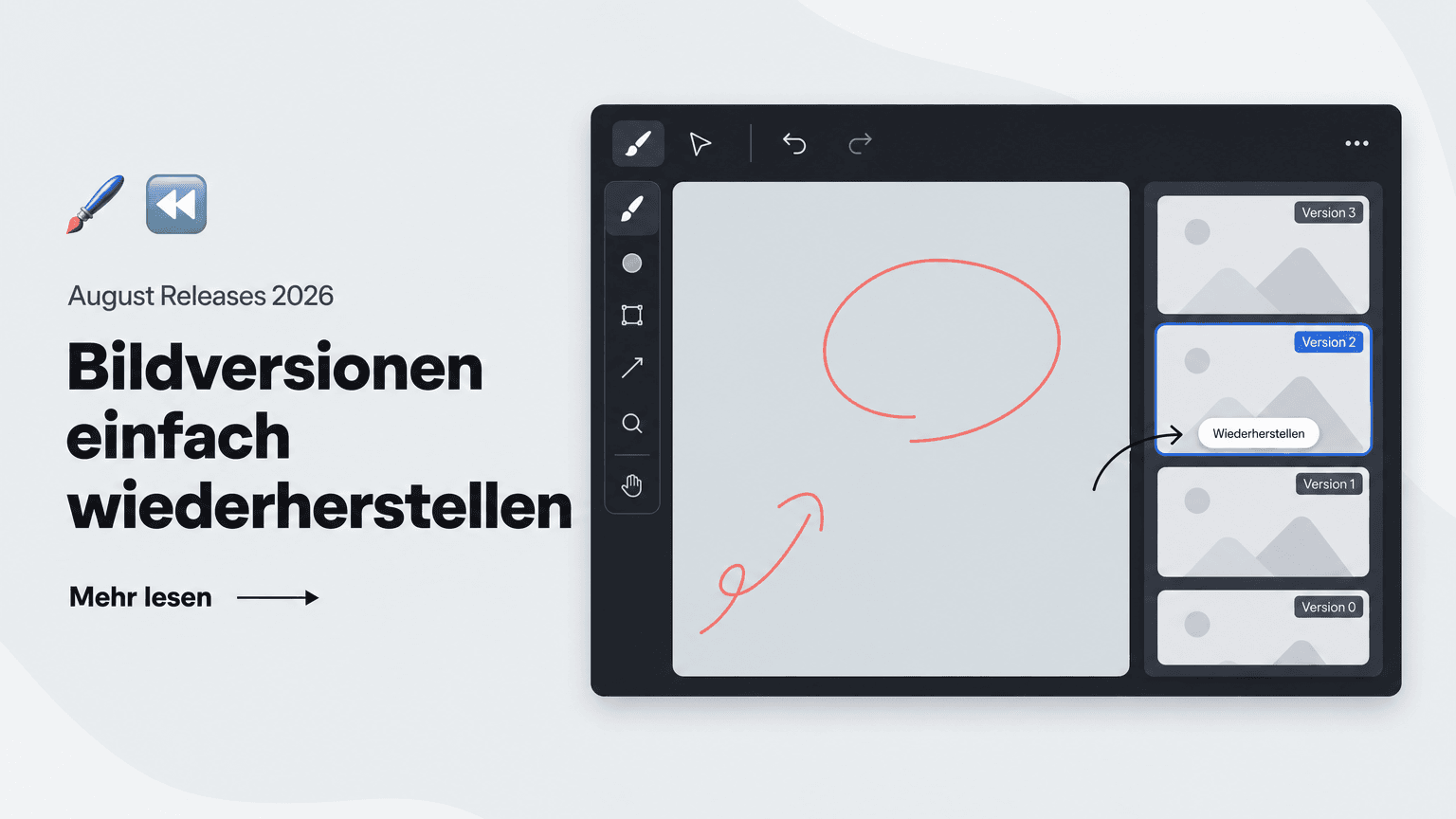
↩️ Restore previous version: One click brings the original back.
When you reopen the image editor after saving an edit, you'll find a new option waiting for you:
- A new "Restore previous version" button right inside the image editor
- A single click brings back the original image
- No backup copies needed – the original is kept automatically
- No re-uploading images when an edit doesn't work out
- Works for every image in the course editor – from course images to images inside lessons
This lets you experiment freely with image edits – ideal when you continuously refine course content and want to return to the original at any time.
🖼️ The image editor at a glance: Crop, draw, and more.
You can open the image editor via the three-dot menu on an image and "Edit image". There you can:
- Crop, rotate, and flip images
- Draw directly on the image and add annotations
- Make individual areas unrecognizable with blur
This way you adjust images for your course content directly in Elephant – and thanks to the new restore option, without any risk.